




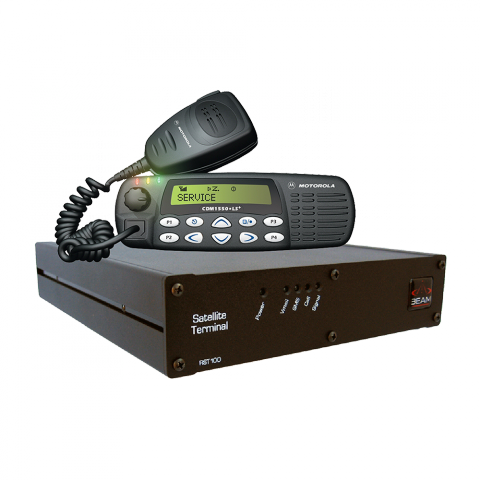
RST820 SatRADIO (fixed) - DISCONTINUED (RST820)
Beam Communications undertakes warranty and out of warranty servicing across our extensive product range.
For further information on our servicing process, warranty items and conditions please click on the button below.
Frequently Asked Questions
Signal/Connectivity
On a docking station/ terminal with status LED, the Status Led will change to green when the terminal is registered to the network.
For an RST100 terminal, the signal LED will change from Red to Green.
For Oceana/Terra 400 terminals, the signal LED on the terminal will change to GREEN (Good Signal Registered) or YELLOW (poor signal registered) when it is registered and able to make calls on the network.
Refer to the product's user manual for more information.
Ensure your terminal’s antenna is installed where there are no obstructions and has a clear line of sight to the satellite with no obstacles which could block the signal.
Check the antenna cable and all connections are secure and no bends or breaks / cuts in the cable
Check for any RF interference near the antenna that maybe causing problems. If there is, shut them down and re test, if works ok, then you will have to relocate the antenna elsewhere
Check with your service provider that the service has been activated.
For Inmarsat subscribers, check the coverage map to ensure service is available at your location or if there is service outage in the area.
If problem persists, contact your service provider.
All wireless devices, including satellite telephones, are susceptible to RF (Radio Frequency) interference from other electronic devices. This problem is especially evident when numerous antennas and broadcasting devices are located within close proximity to each other.
A good example would be onboard a ship. It is important that certain considerations be taken into account for best performance when an Iridium/Inmarsat system is installed.
Causes of RF Interference:
Some subscribers have contacted Iridium regarding the loss of signal quality when they operate their equipment near active Inmarsat terminals. The power with which Inmarsat units transmit can overpower the Iridium unit’s ability to properly maintain a quality connection with the Iridium satellite constellation. Inmarsat terminals are often found in the same locations as Iridium subscribers, such as harbors, airports and especially onboard ships.
The location of the Inmarsat unit’s antenna in relation to the Iridium unit’s antenna plays a significant role in determining the degree of signal degradation that an Iridium subscriber can expect to experience. All Iridium units are susceptible to this interference, regardless of the type of antenna being used.
Generally speaking, an Iridium unit, be it a handset using its internal antenna or a fixed terminal when attached to an externally mounted antenna and located within 15 and 45 meters (50 to 150 feet, respectively) of an operating Inmarsat Standard-C terminal, will likely experience degraded performance.
Other sources of RF interference such as Globalstar units, radar devices and broadcast stations can provide interference for Iridium units, but usually are not encountered as frequently as Inmarsat terminals.
Also refer to “Assuring Quality of Iridium Service” in the Antenna Installation Guide.
Make sure the following are observed:
- Power supply level is steady and never fluctuates.
- Antenna is connected to the dock or terminal with a Beam approved cable.
- Antenna installation guide is followed.
- The sim is active, else request service provider to reset the service on the sim.
Voice
Due to a satellite network, if you are in motion, the satellite signal may become obstructed (such as buildings, bridges, tunnels, larger vehicles, valleys , large trees). If your satellite setup is not obstructed and yet you have no signal, you will need to perform the following checks:
Check the antenna connections.
Ensure the antenna cables are not damaged.
Ensure that only approved antenna cable has been used.
Refer to Antenna Install Guide on Beam website support.
If problem persists, contact your service provider
Voice quality may be affected by many factors. Before making a call, make sure that the signal strength is at least 4-5 bars (some terminals the signal LED should be bright green, not orange, or red). If the setup cannot achieve the signal level required, there is a possibility that there is a problem with the setup.
Please check FAQs about Signal or Antenna for more tips.
Cables/Antennas
The maximum recommended signal drop from the passive satellite antenna to the Iridium transceiver( either a handset or Beam device) is 3dB. (Not applicable when using RST740).
For optimal performance, we recommend using the shortest length of cable and the fewest number of connectors possible. You must ensure that the cable used conforms to this.
An example of attenuation for RG213 cable is 0.33dB per metre @ 1.6Ghz, therefore the maximum cable length is 8m (allowing up to 0.5dB for cable interconnections).
LMR400 cable in comparison has a better attenuation figure of 0.18dB per metre.
Feel free to use the Beam Iridium Online Cable calculator to design your cable for a Beam Iridium docking station or terminal.
Manuals & Guides
Quick Start Guide RST820 SatRADIO-fixed
User Manual RST820 SatRADIO-fixed
Configuration
To configure the settings and update the firmware on the docking station/terminal:
- Download and install the Software Management Tool to a compatible windows computer.
- When available, download and follow the Installation Guide.
- Make sure power is supplied to the docking station/terminal.
- With a Serial/USB cable, connect the docking station/terminal to the computer.
- Open the Software Management Tool and connect.
- For help on using the Software Management Tool, some have user manuals that is available to download from the tool itself by clicking on the ? or Help link.
Frequently Asked Questions
Signal/Connectivity
On a docking station/ terminal with status LED, the Status Led will change to green when the terminal is registered to the network.
For an RST100 terminal, the signal LED will change from Red to Green.
For Oceana/Terra 400 terminals, the signal LED on the terminal will change to GREEN (Good Signal Registered) or YELLOW (poor signal registered) when it is registered and able to make calls on the network.
Refer to the product's user manual for more information.
Ensure your terminal’s antenna is installed where there are no obstructions and has a clear line of sight to the satellite with no obstacles which could block the signal.
Check the antenna cable and all connections are secure and no bends or breaks / cuts in the cable
Check for any RF interference near the antenna that maybe causing problems. If there is, shut them down and re test, if works ok, then you will have to relocate the antenna elsewhere
Check with your service provider that the service has been activated.
For Inmarsat subscribers, check the coverage map to ensure service is available at your location or if there is service outage in the area.
If problem persists, contact your service provider.
All wireless devices, including satellite telephones, are susceptible to RF (Radio Frequency) interference from other electronic devices. This problem is especially evident when numerous antennas and broadcasting devices are located within close proximity to each other.
A good example would be onboard a ship. It is important that certain considerations be taken into account for best performance when an Iridium/Inmarsat system is installed.
Causes of RF Interference:
Some subscribers have contacted Iridium regarding the loss of signal quality when they operate their equipment near active Inmarsat terminals. The power with which Inmarsat units transmit can overpower the Iridium unit’s ability to properly maintain a quality connection with the Iridium satellite constellation. Inmarsat terminals are often found in the same locations as Iridium subscribers, such as harbors, airports and especially onboard ships.
The location of the Inmarsat unit’s antenna in relation to the Iridium unit’s antenna plays a significant role in determining the degree of signal degradation that an Iridium subscriber can expect to experience. All Iridium units are susceptible to this interference, regardless of the type of antenna being used.
Generally speaking, an Iridium unit, be it a handset using its internal antenna or a fixed terminal when attached to an externally mounted antenna and located within 15 and 45 meters (50 to 150 feet, respectively) of an operating Inmarsat Standard-C terminal, will likely experience degraded performance.
Other sources of RF interference such as Globalstar units, radar devices and broadcast stations can provide interference for Iridium units, but usually are not encountered as frequently as Inmarsat terminals.
Also refer to “Assuring Quality of Iridium Service” in the Antenna Installation Guide.
Make sure the following are observed:
- Power supply level is steady and never fluctuates.
- Antenna is connected to the dock or terminal with a Beam approved cable.
- Antenna installation guide is followed.
- The sim is active, else request service provider to reset the service on the sim.
Voice
Due to a satellite network, if you are in motion, the satellite signal may become obstructed (such as buildings, bridges, tunnels, larger vehicles, valleys , large trees). If your satellite setup is not obstructed and yet you have no signal, you will need to perform the following checks:
Check the antenna connections.
Ensure the antenna cables are not damaged.
Ensure that only approved antenna cable has been used.
Refer to Antenna Install Guide on Beam website support.
If problem persists, contact your service provider
Voice quality may be affected by many factors. Before making a call, make sure that the signal strength is at least 4-5 bars (some terminals the signal LED should be bright green, not orange, or red). If the setup cannot achieve the signal level required, there is a possibility that there is a problem with the setup.
Please check FAQs about Signal or Antenna for more tips.
Cables/Antennas
The maximum recommended signal drop from the passive satellite antenna to the Iridium transceiver( either a handset or Beam device) is 3dB. (Not applicable when using RST740).
For optimal performance, we recommend using the shortest length of cable and the fewest number of connectors possible. You must ensure that the cable used conforms to this.
An example of attenuation for RG213 cable is 0.33dB per metre @ 1.6Ghz, therefore the maximum cable length is 8m (allowing up to 0.5dB for cable interconnections).
LMR400 cable in comparison has a better attenuation figure of 0.18dB per metre.
Feel free to use the Beam Iridium Online Cable calculator to design your cable for a Beam Iridium docking station or terminal.
Manuals & Guides
Quick Start Guide RST820 SatRADIO-fixed
User Manual RST820 SatRADIO-fixed
Configuration
To configure the settings and update the firmware on the docking station/terminal:
- Download and install the Software Management Tool to a compatible windows computer.
- When available, download and follow the Installation Guide.
- Make sure power is supplied to the docking station/terminal.
- With a Serial/USB cable, connect the docking station/terminal to the computer.
- Open the Software Management Tool and connect.
- For help on using the Software Management Tool, some have user manuals that is available to download from the tool itself by clicking on the ? or Help link.